Storing Document Types Information in the Application's Property List
Applications use an information property list file, which is stored in the application’s bundle and named, by default, Info.plist, to specify various information that can be used at runtime. Document-based applications use this property list to specify the document types the application can edit or view. This information is used by the application and system entities such as the Finder and Launch Services (an API for launching applications in Mac OS X) as well.
For example, when the NSDocumentController object creates a new document or opens an existing document, it searches the property list for such items as the document class that handles a document type, the uniform type identifier (UTI) for the type, and whether the application can edit or only view the type. (Similarly, Launch Services may use information about the icon file for the type.) Supplying this information in a property list allows an application to support the Open and Save panels with little effort.
Document types information is associated with the CFBundleDocumentTypes key as an array of dictionaries, each of which contains the key-value pairs that define the document type. For a list of possible keys and their values, see Property List Key Reference.
Although you can create and edit information property lists directly in the Property List Editor application (located in /Developer/Utilities/Applications), Xcode also provides convenient options for viewing and editing document types information (and other property list information). Figure 1 shows the Properties pane of the Xcode inspector for the TextEdit target. In this view, you can select and edit any of the document types as well as add and delete entries. You can also edit the property list file in the plain text XML format shown in Listing 1. The property list file for the TextEdit application is named Info-TextEdit.plist (the name can be specified among the target’s build settings).
Info.plist files, and you cannot configure Info.plist entries for legacy targets, such as Jam-based Project Builder targets, in the target inspector. To edit the Info.plist entries for Jam-based targets in Xcode, select the target in the Groups & Files list and double-click the target to launch the target editor. 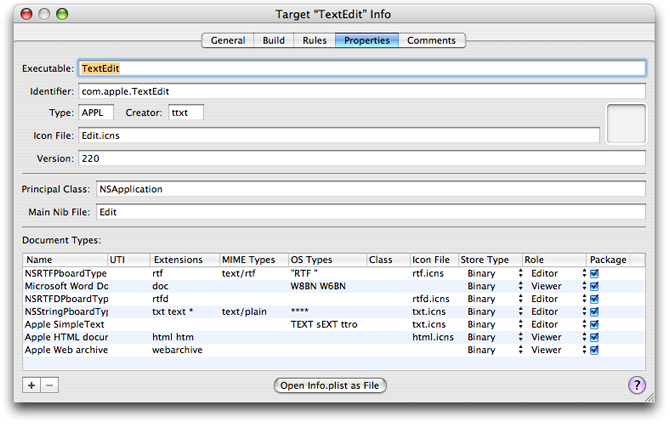
TextEdit defines a subclass of NSDocument named Document to handle all of its document types, as shown in the Class column in Figure 1.
The top section of the Properties pane allows you to edit basic information about the product, such as the name of the associated executable, the identifier, type and creator, version information, and an icon to associate with the finished product. The name of the icon here must match the name of an icon file (extension .icns) that resides in the Resources folder of the product bundle.
The Principal Class and Main Nib File options are specific to Cocoa applications and bundles, and Automator actions. The Principal Class field corresponds to the information property list key NSPrincipalClass. The Main Nib File field specifies the nib file that’s automatically loaded when the application is launched. It corresponds to the information property list key NSMainNibFile.
The Document Types table allows you to specify which documents your finished product can handle. You can add and remove document types from this list using the plus and minus buttons. You should list the application's primary document type first because the document controller uses that type by default when the user requests a new document. Here is what’s in the Document Types table:
Name. The name of the document type. The corresponding property list key is
CFBundleTypeName. In Mac OS v10.5 and later, any document type that specifies a UTI (which uses theLSItemContentTypeskey in XML), the UTI is used as the programmatic type name byNSDocumentandNSDocumentController, instead of the value of anyCFBundleTypeNamesubentry that might also be present. (If the application is linked against Mac OS X v10.4 or earlier, or if a UTI is not specified, theCFBundleTypeNamesubentry specifies the document type in APIs such as theNSDocumentControllermethodmakeUntitledDocumentOfType:error:.)UTI. A list of Uniform Type Identifier (UTI) strings for the document. UTIs are strings that uniquely identify abstract types, providing a consistent identifier for data that all applications and services can recognize and rely upon. By using UTIs, applications can avoid the complexity required to handle the disparate kinds of file type information on the system, including file extensions, MIME types, and HFS type codes (OS Types).
In Mac OS X v10.5 and later, if a document type specifies a UTI, the Cocoa and LaunchServices frameworks ignore sibling entries specifying file extensions, MIME types, and HFS type codes (OS Types). For more information on UTIs, see Uniform Type Identifiers Overview and the header file
UTType.h, available as part ofLaunchServices.frameworkin Mac OS X v10.3 and later.Extensions. A list of the filename extensions for this document type. The period is not included with the extension. Using UTIs eliminates the need to list extensions in the application’s property list file. The corresponding property list key is
CFBundleTypeExtensions.MIME Types. A list of the Multipurpose Internet Mail Extensions (MIME) types for the document. MIME types identify content types for Internet applications. Using UTIs eliminates the need to list MIME types in the application’s property list file. The corresponding property list key is
CFBundleTypeMIMETypes.OS Types. A list of four-letter codes for the document. These codes are stored in the document's resources or information property list files. Using UTIs eliminates the need to list OS Types in the application’s property list file. The corresponding property list key is
CFBundleTypeOSTypes.Class. The subclass of
NSDocumentthat this document type uses. Specifying the document class is important because when opening a document, theNSDocumentControllerobject can use the information to create instances of theNSDocumentsubclass appropriate to a data type. As a result, you don’t have to allocate and initialize your subclass ofNSDocumentexplicitly in your code; it is done automatically for you.Icon File. The name of the file that contains the document type’s icon.
Store Type. The format of persistent data store used for the document.
Role. A description of how the application uses the documents of this type. You can choose from four values:
Editor. The application can display, edit, and save documents of this type.
Viewer. The application can display, but not write, documents of this type. It may also specify this role to to indicate that it is not a primary handler of this type, even though it can write it.
Shell. The application provides runtime services for other processes—for example, a Java applet viewer.
None. The application can neither display nor edit documents of this type but instead uses them in some other way. For example, an application may not understand the data but can declare other information about the type, as when the Finder declares the icon for fonts, or it can use this role to declare types it can export but not read.
Package. Specifies whether the document is a single file or a file package—that is, a directory that is treated as a single file by certain applications, such as the Finder.
To edit a document type, click the type’s line in the Document Types list and double-click the individual fields in each column to add or change the document type information.
Listing 1 shows information for one of the document types from the information property list file for the TextEdit application (which is available in /Developer/Examples/TextEdit) in text-only XML format. The property list is considerably simplified by the use of the UTI for the document type, which is listed under the key LSItemContentTypes.
This listing omits eleven additional document types handled by the TextEdit application, which are shown in the Xcode inspector view in Figure 1.
Listing 1 Document types information for TextEdit application in XML format
<key>CFBundleDocumentTypes</key> |
<array> |
<dict> |
<key>CFBundleTypeIconFile</key> |
<string>rtf.icns</string> |
<key>CFBundleTypeName</key> |
<string>NSRTFPboardType</string> |
<key>LSItemContentTypes</key> |
<array> |
<string>public.rtf</string> |
</array> |
<key>CFBundleTypeRole</key> |
<string>Editor</string> |
<key>LSIsAppleDefaultForType</key> |
<true/> |
<key>NSDocumentClass</key> |
<string>Document</string> |
</dict> |
... |
© 2001, 2009 Apple Inc. All Rights Reserved. (Last updated: 2009-11-17)

